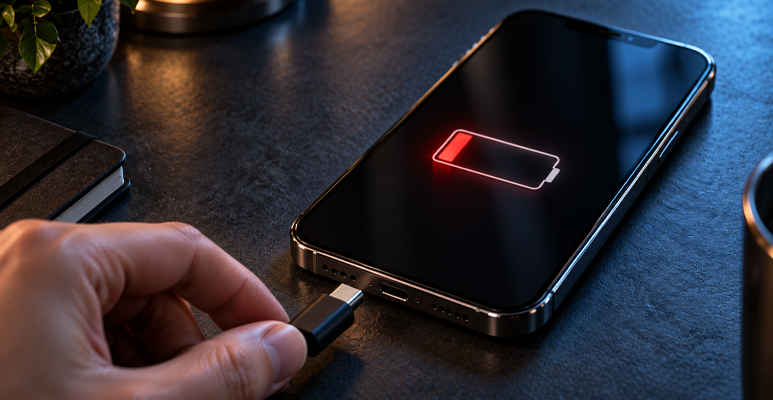

We have all felt that sinking feeling in our stomachs. You accidentally drop your device, hear a crunch, and pick it up to see a spiderweb of cracks across the glass. Or perhaps it just stops turning on altogether. The immediate panic isn’t just about the cost of the fix; it’s about what’s inside. The photos from your last holiday, the messages from loved ones, and the contacts you haven’t memorised since 2005.
Handing your device over to a stranger, even a professional, can be nerve-wracking. While technicians take every precaution, the reality is that hardware fixes and software diagnostics carry a slight risk of data loss. Sometimes, a factory reset is unavoidable to test a new component or access the motherboard.
The only way to truly relax when dropping off your device is knowing you have a digital safety net. A solid backup strategy is your best insurance policy. Whether you use the cloud or a computer at home, securing your data ensures that no matter what happens on the repair bench, your digital memories remain safe.
Why Backups Are Essential Before a Phone Repair
It is easy to assume that a simple screen swap won’t touch your internal storage. In most cases, you would be right. However, technology is unpredictable. A battery replacement might reveal a motherboard issue, or a new screen might require software calibration that necessitates a reset.
Furthermore, almost every reputable service centre, including us at Jazzy Mobiles, will ask customers to back up their data before booking a job. This isn’t just to cover us against liability; it is to protect you. If a technician needs to wipe the device to perform a thorough diagnostic test or reinstall the operating system, they cannot do so safely if your data is at risk.
Ultimately, walking into a shop for a Phone Repair knowing your digital life is cloned and safe elsewhere gives you total peace of mind. It turns a stressful situation into a minor inconvenience.
How to Back Up Your iPhone Before an iPhone Repair
Apple makes it relatively straightforward to secure your data. Depending on your storage plan and equipment, you have two solid options.
iCloud Backup
For most people, the cloud is the easiest route. It happens wirelessly and requires no extra cables.
1. Connect your device to a Wi-Fi network.
2. Go to Settings and tap your name at the top.
3. Tap iCloud.
4. Tap iCloud Backup.
5. Tap Back Up Now.
Note: Ensure you have enough available iCloud storage. If your backup size exceeds your free 5GB limit, you may need to upgrade your storage plan temporarily.
Mac or PC Backup
If you prefer keeping your data offline or don’t want to pay for cloud storage, a local backup is reliable and fast.
- On a Mac (macOS Catalina or later): Connect your phone, open Finder, select your device from the sidebar, and click “Back up all of the data on your iPhone to this Mac.”
- On a PC (or older macOS): Open iTunes or the Apple Devices app, connect your phone, and select “Back Up Now.”
Why is this so crucial for an iPhone Repair? Apple’s security architecture is incredibly strict. Certain repairs may trigger security lockouts that require a restore to unlock, meaning your data could be wiped as a security measure. Having a backup prevents this security feature from becoming a data disaster.
How to Back Up Your Android Before an Android Phone Repair
Android devices offer flexibility, but the process can vary slightly depending on the brand. Here is the universal method that works for most.
Google One Backup
This is the standard backup system for Android and covers the essentials like app data, call history, contacts, settings, and SMS messages.
1. Open your Settings app.
2. Tap Google, then select Backup.
3. Tap Back up now.
Manufacturer Specific Tools
If you are booking an Android Phone Repair for a Samsung, you have an extra layer of protection. Samsung Cloud or ‘Smart Switch’ (to a PC/SD card) allows for comprehensive backups. Check your specific brand’s settings for proprietary backup tools, as they often save home screen layouts and specific settings that Google might miss.
Don't Forget Photos
Unlike iPhones, Android photo backups are often handled separately through the Google Photos app. Open the app and ensure your profile icon has a cloud symbol without a line through it, indicating that ‘Back up & sync’ is turned on and up to date.
Preparing Your Device for the Phone Repair Technician
Once your data is safe, a few extra steps can speed up the service and help the technicians.
- Remove Security Locks: If you are comfortable doing so, turn off your passcode or FaceID. Technicians often need to access the device to test touch sensitivity, cameras, and speakers after the fix. If you can’t unlock it, testing takes longer.
- Remove External Cards: Take out your SIM card and any MicroSD cards. Keep them safe in your wallet so they don’t get lost or mixed up in the workshop.
- Note Down Your IMEI: Dial *#06# on your keypad and write down the number. This is your device’s unique serial ID, useful for identifying your phone if the shop is busy.
A prepared device is a dream for technicians and ensures your Phone Repair is completed faster.
Conclusion
Losing a phone is annoying; losing the memories inside it is heartbreaking. Whether you are coming in for a simple battery swap or a complex motherboard fix, preparation is the key to a stress-free experience. By taking twenty minutes to secure your data, you ensure that you walk out of the shop with a working phone and all your photos intact.
Ready to get your device fixed?
At Jazzy Mobiles, we treat your device with the care it deserves. Whether you need a quick screen fix or a battery replacement, we are here to help. Contact us today to book your Phone Repair!
Jazzy Mobiles is your trusted local expert in Australia for reliable, high-quality mobile device repairs. Specialising in everything from cracked screens to battery replacements, we pride ourselves on getting you reconnected quickly and affordably.
FAQ's
Do I really need to back up my phone before a screen replacement?
Yes. While screen replacements are primarily hardware tasks, unforeseen complications can occur. For example, if the device was dropped hard enough to break the screen, internal components might be loose. Opening the phone could trigger a failure that requires a restore. It is always safer to back up before any Phone Repair.
How long does a full backup take?
This depends entirely on your internet connection speed (for cloud backups) and how many photos and videos you have. A local backup to a computer via cable might take 15–20 minutes, while a large iCloud backup on slow Wi-Fi could take an hour or more.
Can Jazzy Mobiles back up my data for me?
Our expertise lies in hardware repairs, such as Android Phone Repairs and screen replacements. For privacy and liability reasons, we strongly recommend you perform the backup yourself at home. However, if you are stuck, our team can guide you in the right direction when you arrive.
What if my screen is broken and I can't touch it to back up?
This is a tricky situation. If the display is gone but the phone works, you can sometimes connect a USB mouse using an OTG (On-The-Go) cable to navigate the menus and trigger a backup. Alternatively, connecting it to a previously trusted computer might enable auto-backup.