Upgrading to a new iPhone is exciting, but it can become stressful if photos, contacts or chats don’t make the move.
A careful iPhone data transfer protects your memories and important information.
This guide walks you through why transfer matters, safe backup steps, how to move photos, contacts and chats, and what to do if something goes wrong.
In this blog, you will find the steps for a smooth new iPhone setup and worry-free switch.
Why Does iPhone Data Transfer Matter When Upgrading?
When you move to a new iPhone, you don’t just want the device; you want everything on it. Photos, contacts, messages and app data are often irreplaceable.
An incomplete iPhone data transfer can leave gaps, missing images, lost phone numbers, or chat threads that never return. Beyond convenience, having full data available on your new phone keeps business contacts, family memories and essential app settings intact.
Good transfer practice reduces downtime and prevents the frustration of trying to recover lost data later.
How to Safely Back Up Your Old iPhone?
Backing up is the most important step before any upgrade. You have three reliable options:
1. iCloud Backup
Go to Settings > Your Name > iCloud > iCloud Backup and tap Back Up Now. iCloud stores photos, messages, app data and settings in the cloud, making the iPhone backup restore process easy on the new device. Make sure you have enough iCloud storage and a stable Wi-Fi connection.
2. Computer Backup (Finder or iTunes)
Connect your phone to a Mac or Windows PC and use Finder (macOS) or iTunes (Windows). Choose Back Up Now and, if you want passwords and health data included, encrypt the backup. This method is great when iCloud space is limited or when you want a full local copy.
3. Third-party App Backups
Some apps like WhatsApp have their own cloud backup option. For apps that don’t sync to iCloud, check their settings and back up chats or data separately.
Before backing up, update iOS on your old phone and check the battery level. Confirm the backup finished successfully, don’t proceed until you see the latest backup date and time.
Moving Photos, Contacts, and Chats to Your New iPhone
There are smooth, Apple-approved ways to move data:
Quick Start
Place your old iPhone next to the new one and follow onscreen prompts. Quick Start transfers settings, apps and data wirelessly or by cable. It’s fast and requires both devices to be powered and nearby.
iCloud Restore
After signing in to your Apple ID on the new phone during setup, choose Restore from iCloud Backup. Select the most recent backup and wait. Photos stored in iCloud Photos will sync automatically. This method is ideal when you don’t have both devices at hand.
Restore from Computer Backup
If you used Finder or iTunes, connect the new iPhone to the computer and select Restore Backup. This is reliable for large libraries and avoids using iCloud storage.
Setting Up Your New iPhone Without Data Loss
Follow a careful setup routine to avoid mistakes:
- Charge both devices and connect to a reliable Wi-Fi.
- Use Quick Start if possible — it handles most of the work.
- Choose the correct backup when prompted (iCloud or computer).
- Wait for the restore to fully complete before resetting the old device. Photos and large apps may continue downloading in the background; don’t interrupt the process.
- Check app logins and two-factor authentication — some apps require you to sign in again or verify your identity.
- Verify key data: open Photos, Contacts and main messaging apps to make sure everything is present.
If you have a specific preference for how settings and layout transfer, Quick Start and iCloud preserve most personal arrangements. For a fresh start, you can selectively transfer only essential data and reinstall apps manually.
What to Do If Something Goes Wrong?
Even with careful steps, issues can appear. Here’s how to respond:
- Don’t reset the old phone yet. If data is missing, keeping the old phone powered increases your chances of recovery.
- Recheck backups. On the old device, confirm the latest iCloud backup or check the timestamp of the computer backup.
- Retry restore. Sometimes a second attempt fixes interrupted downloads or sync issues.
- Use specialised recovery tools sparingly. Third-party recovery apps can help, but choose reputable software and read reviews.
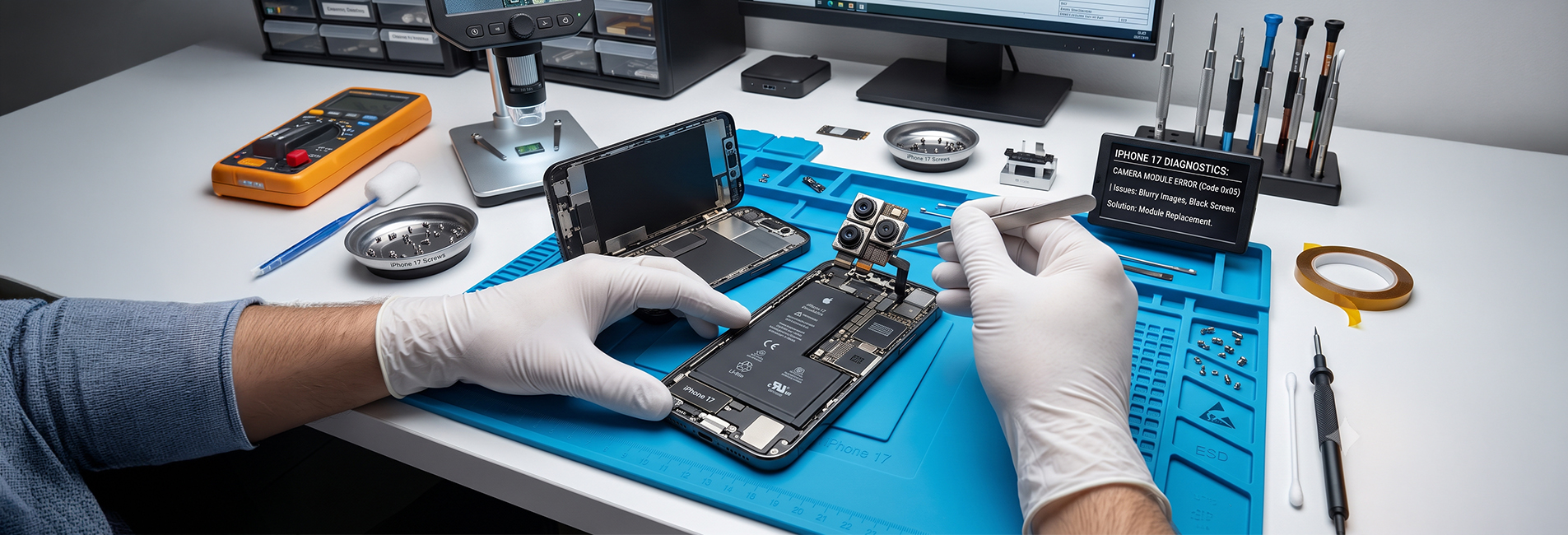
- Seek professional help. If your phone is damaged or backups fail repeatedly, consider Apple iPhone repairs or an authorised technician. Repairing the battery, charging ports or system faults often fixes issues that block successful data transfer.
- Contact Apple Support for account or cloud-related problems you can’t resolve locally.
Double-Check Before Resetting Your Old Device
Before you erase the old iPhone, confirm everything transferred:
- Are all photos visible in the Photos app and in iCloud Photos?
- Do all contacts appear and match names and numbers?
- Are chat histories present in iMessage, WhatsApp and other messaging apps?
- Have you signed into vital apps and checked saved passwords (iCloud Keychain)?
- Is Find My iPhone disabled (Settings > Your Name > Find My)?
- Do you have a verified backup copy on iCloud or your computer?
Only after confirming these points should you erase the old device. To reset, go to Settings > General > Transfer or Reset iPhone > Erase All Content and Settings. This ensures your personal data is gone from the old device and safe on the new one.
Conclusion
Switching to a new iPhone should be smooth and secure when you prioritise iPhone data transfer.
Back up your old device with iCloud or a computer, use Quick Start for easy transfer, and verify photos, contacts and chats before erasing the old phone.
If problems arise, don’t rush; recheck backups or seek Apple iPhone repairs to recover data. With careful steps, your new iPhone setup will keep every memory and contact intact.
Jazzy Mobiles understands how important your photos, contacts, and chats are when upgrading your iPhone.
With the right backup and transfer support, you can switch devices without stress or data loss.
Trust the experienced team at Jazzy Mobiles to guide you through a safe, smooth upgrade, so your memories and important information stay exactly where they belong.
FAQs
What is the safest way to transfer data to a new iPhone?
Using iCloud or Quick Start is the safest method. Both systems are designed specifically for Apple devices. They protect your photos, contacts, chat history, and personal settings during transfer.
Do I need iCloud storage for iPhone data transfer?
Not always. You can also use Finder or iTunes to back up your device. If you choose iCloud but run out of space, you may need to manage or upgrade your storage before backing up.
What happens if my old iPhone is damaged?
If the device still powers on, technicians can help perform an iPhone backup restore. If the phone doesn’t turn on at all, you may need Apple iPhone repairs first to recover your data.
Can I transfer WhatsApp chats to my new iPhone?
Yes. Enable WhatsApp iCloud Backup and restore it on your new iPhone. Make sure you use the same phone number and Apple ID for a successful restore.
Why is my new iPhone setup taking so long?
Large backups, slow WiFi, or low battery can cause delays. Keep both devices connected to power and stable internet. Avoid interrupting the transfer to prevent data loss.